

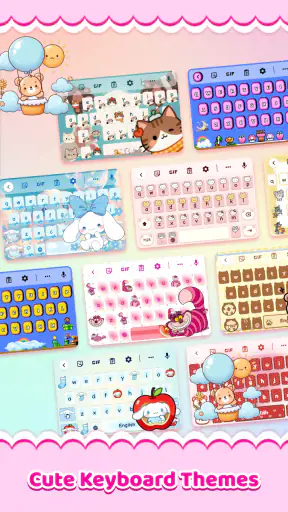
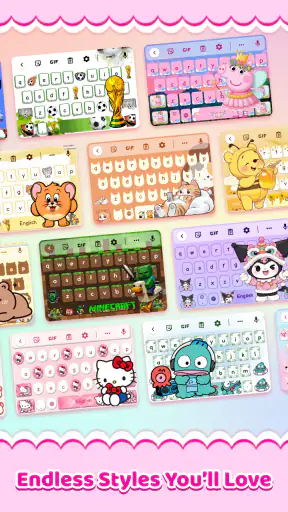
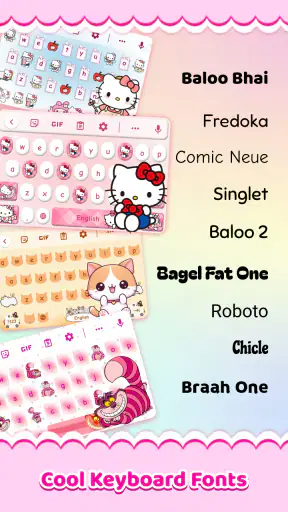
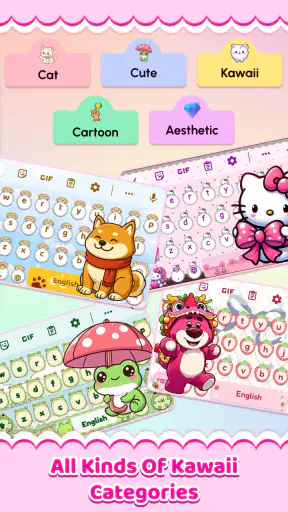
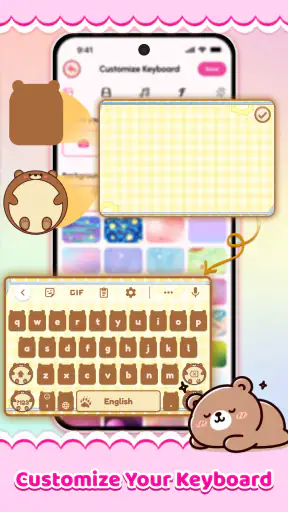
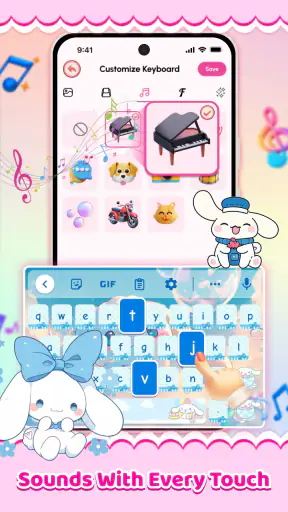
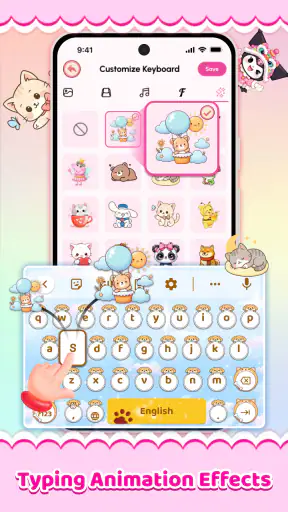
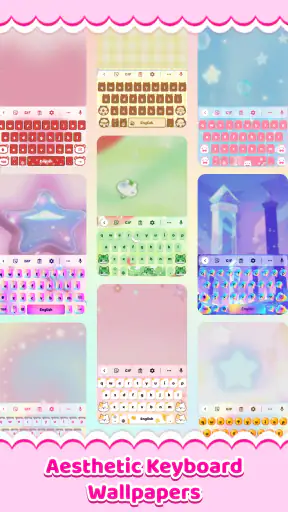
I approached Cute Keyboard: Sound & Emoji as a personalization app rather than just another decorative download. Its appeal is straightforward: it lets me make everyday typing feel more personal through a styled keyboard, emoji choices, and keypress sounds. That sounds simple, but a keyboard sits underneath nearly everything I do on a phone, so small setup problems can matter more here than they would in a wallpaper app.
After spending time with it, my view is that this app works best for people who want a playful visual change without replacing their whole phone interface. It is free to install, aimed at Everyone, and developed by Neli Creative. The current release is version 1.5.6, and it runs on Android 9 or newer. Those details make it accessible to many users, although the real question is less about compatibility and more about whether you are comfortable changing the keyboard you use for messages, searches, notes, and passwords.
Where the experience can get stuck
The first point that can confuse new users is the difference between downloading a keyboard app and actually using that keyboard. Installing Cute Keyboard: Sound & Emoji does not automatically mean every text field will immediately show the new design. A keyboard normally has to be enabled and selected through the device’s input settings, so the app may appear to be doing nothing if that step has been skipped.
I would not treat that as a fault unique to this app. It is a common source of friction with almost every third-party keyboard. The important thing is to look for the app’s setup guidance and follow the phone’s own keyboard-selection screen carefully. If the keyboard is enabled but another keyboard remains selected, tapping inside a message box will continue to bring up the old one.
Another easy mistake is expecting the visual theme to change every part of the phone. This is a keyboard customization tool, not a complete launcher or system skin. The effect is concentrated where you type. Your home-screen icons, notification shade, and other system controls should not be expected to adopt the same appearance simply because the keyboard has been customized.
Sound can also create misleading impressions. If the keys look different but remain quiet, that does not necessarily mean the style failed. Keypress audio can depend on the chosen keyboard settings, the phone’s media or system volume, and whether the device is muted. I recommend testing in a normal text field instead of judging the result from the setup screen alone.
There is a practical privacy consideration with any keyboard change, even when the app’s main purpose is decoration. A keyboard is present while I type sensitive information, so I would pause before using a themed keyboard for banking details, recovery codes, or private work material. For ordinary messages and casual searches, the app’s concept is easy to understand; for highly sensitive typing, my default system keyboard is the more comfortable choice.
The app has attracted a 4.3 average from around 18 thousand ratings, with more than a million installs. That level of adoption suggests the basic idea is easy for many people to enjoy, but popularity should not be confused with universal suitability. A keyboard has to feel comfortable on an individual phone, and screen size, Android interface, sound settings, and typing habits all affect the result.
What to check before blaming the theme
If the keyboard disappears after switching to another app, I first check whether the phone has reverted to its previous input method. Some devices show a small keyboard icon while typing; others place the selector inside the notification area or keyboard settings. Returning to that selector is usually more useful than reopening the customization app repeatedly.
If the keyboard appears but looks unchanged, I check whether I saved or applied the selected style rather than merely previewing it. I also close and reopen the text field. A keyboard that was already visible before a theme change may not refresh instantly, while a new text box often loads the updated appearance.
For sound problems, I test with the phone’s media volume raised modestly and the device’s silent mode considered. I would avoid turning the volume up aggressively, because the useful test is simply whether the effect is active, not whether it is loud. In shared spaces, I would leave keypress sounds off even if the feature works correctly.
Emoji behavior deserves its own check. A themed keyboard may make emoji easier or more enjoyable to access, but the recipient’s phone and the messaging service still influence how those symbols appear. If a particular emoji looks different in a conversation, that is often a rendering difference between devices rather than evidence that the keyboard has malfunctioned.
Setting it up without losing your normal typing routine
My preferred approach is to install the app when I have a few uninterrupted minutes, not just before sending an important message. I would open it, read each setup prompt, enable the keyboard only through the phone’s normal input controls, and then select it as the active option. After that, I would test three different places: a message, a search box, and a notes field. This catches problems that may appear only in one particular app.
I also recommend keeping the original keyboard available. There is no good reason to remove the familiar option while experimenting. Having a fallback makes it easier to compare typing comfort, switch back for sensitive text, or recover if the themed keyboard is temporarily unavailable. The ability to return to the previous keyboard is especially useful for people who type quickly and cannot afford to relearn their layout during a busy day.
Before settling on a style, I look at more than color. Key contrast matters when I type outdoors, while spacing and symbol placement matter when I am writing quickly. A design that looks charming in a preview can become tiring if letters blend into the background or if the visual decoration makes the keys harder to distinguish. The best theme is not necessarily the most elaborate one; it is the one I can read without slowing down.
The same applies to sounds. A short, subtle keypress effect can make casual typing feel lively, but repeated sounds become distracting during long messages. I would try the sound while writing a full sentence rather than tapping a few keys in the preview. That gives a much better idea of whether it adds personality or simply becomes noise.
Because in-app purchases range from $3.99 to $24.99 per item, I would explore the free experience before spending anything. The app is free to download, but that does not mean every customization choice is included at no cost. I consider this a normal distinction for personalization software, yet it is worth remembering when a preview looks appealing and invites an immediate purchase.
My advice is to decide what you actually want first. If the goal is a cheerful keyboard for occasional chatting, one pleasant style and a restrained sound may be enough. If you are hoping to redesign every aspect of typing with a large collection of options, you should examine the available choices carefully before assuming the paid items will match your preferences.
A useful test for real-world comfort
I use a short repeatable test when trying a new keyboard. I type a sentence containing capital letters, numbers, punctuation, an emoji, and a correction. Then I repeat it in a message and a search field. This exposes whether the layout feels natural, whether switching between letters and symbols is comfortable, and whether autocorrection or cursor control feels different from my usual keyboard.
For someone with a smaller phone, I would pay special attention to accidental taps. Decorative styling cannot compensate for a layout that makes neighboring keys difficult to distinguish. On a larger screen, the issue may be less about crowding and more about whether the keyboard occupies too much visual attention. These are personal trade-offs, so a few minutes of actual typing are more informative than a screenshot.
Families should also remember that the Everyone age rating describes the app’s broad suitability, not a guarantee that every theme or sound will appeal to every household. A child may enjoy the playful presentation, while an adult who uses the phone for work may prefer a quieter, more restrained setup. The app can serve both audiences, but probably not with the same configuration.
Recovering your workflow when something changes
The most annoying keyboard issue is usually not that a theme looks imperfect; it is that the familiar keyboard suddenly appears to be gone. In that situation, I would open any text field and use the device’s keyboard switcher first. If that is not visible, I would go into the phone’s language and input settings and select the previous keyboard again. This is a safer recovery path than uninstalling applications at random.
If Cute Keyboard: Sound & Emoji stops appearing after a phone restart or system update, I would repeat the input-method check. A system change can alter which keyboard is active without changing the app itself. I would also reopen the app and confirm that the intended style is still applied. These steps are general, low-risk checks and do not require changing unrelated phone settings.
When a keyboard works in one app but not another, I would compare the text fields before assuming the customization is broken. Some apps use unusual input boxes, restricted fields, or their own editing behavior. A search box, a messaging composer, and a password field can all behave differently. If the keyboard appears normally in ordinary text areas, the problem may be limited to that particular app or field.
For passwords and protected entry boxes, switching back to the standard keyboard can be sensible even when the themed one is functioning. That is not a criticism of Neli Creative’s app so much as a workflow choice. I prefer to separate playful typing from security-sensitive typing, especially when I am entering account credentials or recovery information.
There is also a simple recovery habit that saves time: do not change several keyboard settings at once. If I alter the theme, sound, and active input method together and then something feels wrong, I have no clear idea which change caused it. I prefer to apply one visual style, test it, then adjust sound separately. This makes troubleshooting much less frustrating.
When the app is not the cause
Typing delays can come from the phone rather than the keyboard design. If the entire device is struggling, other apps are slow, or taps register late across the interface, changing themes is unlikely to solve the underlying issue. I would first close unnecessary apps, check whether the phone is responding normally elsewhere, and test again in a basic text field.
Network problems are another possible distraction, particularly when a user expects online content or a store page to load instantly. A keyboard’s basic appearance and input behavior should be judged separately from a temporary connection issue. If only a page or preview fails to load while existing keyboard functions remain available, I would treat that as a connection or store problem until proven otherwise.
Sound complaints can also come from the phone’s audio configuration. Bluetooth headphones, media volume, silent mode, and notification settings can all change what I hear. I would disconnect external audio devices and perform a simple volume check before deciding that keypress sounds are unavailable.
If emoji look different between the sender and recipient, the messaging app and the receiving device may be responsible. The keyboard chooses what I insert, but the final appearance is often rendered elsewhere. This distinction matters because it prevents an unnecessary reinstall when the actual issue is simply platform-specific emoji design.
Finally, if the phone is managed by a school, employer, or family administrator, input-method restrictions may affect installation or selection. In that case, the right solution is to follow the device owner’s rules rather than repeatedly trying to force the keyboard active. The app cannot override restrictions imposed outside it.
Who will enjoy it, and who should stay with the usual keyboard?
I think this app is a good fit for someone who spends a lot of time messaging casually and wants a visible change without committing to a full launcher makeover. It is also appealing for users who enjoy matching their keyboard to a personal mood, favorite color, or playful emoji style. The customization is most valuable when typing is part of your daily expression rather than merely a utility.
It is less convincing for people who value maximum typing speed, advanced productivity tools, or a highly familiar professional layout above appearance. A standard keyboard may be better if you rely heavily on multilingual switching, specialized shortcuts, voice input, or carefully tuned correction behavior. I would not install a decorative keyboard expecting it to outperform a mature general-purpose keyboard in every productivity task.
Compared with the usual alternatives, Cute Keyboard: Sound & Emoji has a narrower purpose. A standard system keyboard generally prioritizes reliability and integration, while a large productivity keyboard may focus on prediction, search, translation, clipboard tools, or extensive language support. This app’s reason to exist is the feel and look of typing. That focus is a strength if personalization is your priority, but a limitation if you want one keyboard to handle every advanced task.
A realistic everyday example is a user who spends the evening replying to friends, adding emojis, and writing short social posts. In that setting, a cheerful theme and light keypress sounds can make the phone feel more individual. The same user might switch back to the default keyboard the next morning for a work email, a long document, or a password. That two-keyboard routine is not a failure; it is probably the most practical way to enjoy the app without sacrificing comfort.
I would also skip it if the main attraction is a complete phone redesign. The app changes the typing surface, not the entire operating system. Likewise, anyone who finds sound effects irritating after a few minutes should not feel obliged to keep them enabled just because they are part of the concept. The visual customization can stand on its own.
My practical verdict after using it
Cute Keyboard: Sound & Emoji succeeds when I judge it by the right standard. It is not trying to replace every feature of a full productivity keyboard; it is a friendly personalization layer for people who want typing to look and sound less ordinary. The strongest part is the immediate emotional change: a familiar action can feel more playful once the keyboard has a style that suits you.
The setup deserves patience, especially when selecting the active input method or diagnosing why a theme or sound has not appeared. Keeping the original keyboard available, testing in several text fields, and changing one setting at a time removes most of the avoidable frustration. Those habits also make it easier to decide whether the app genuinely improves your routine instead of merely looking attractive in a preview.
Its free entry point makes experimentation easy, while the paid items mean I would not rush into buying a collection before trying the everyday workflow. I would judge a purchase by long-term readability and typing comfort, not by how impressive a theme looks for the first minute.
My recommendation is positive but specific: try it if you want a cute, expressive keyboard for casual communication and you are comfortable managing a third-party input method. Keep your default keyboard ready for secure or demanding work, and do not expect this app to transform the rest of the phone. The best way to enjoy it is to treat personalization as an optional layer, not as a replacement for every keyboard habit you already trust.


